¶ Introduction
The page describes some of the things I've learned in regards to Microsoft 365 Administration.
¶ User License
In the Microsoft 365 Admin Center, I performed the following steps to set up a license for my tcoon user account.
- Navigate to Billing → Your products → Add more products
- Purchase Microsoft 365 Business Basic (No Teams) License
- Navigate to Users → Active users and select the user account.
- Under Licenses & apps, select the usage location and assign the license.
When I tried to assign the license from the billing section, I got an error that the usage location was incorrect. By assigning from the Users pane, I was able to select the location.
After successfully adding the license to the user account, I logged in and verified that it had the correct access.
¶ Proxy Address / Alias
The next thing I wanted to do was add an Alias email of Tyler.Coon@tybax.com because this looks more professional.
¶ Microsoft 365 Admin Center
In the Microsoft 365 Admin Center, I navigated to Users → Active users then selected the account and clicked on Manage username and email under the Account tab. I attempted to add the new username in the alias section, but the Add button was disabled.
¶ Exchange Admin Center
Next, I tried using the Exchange Admin Center. Under Recipients → Mailboxes, I selected the user account and found Manage user account types. Here, I added a new SMTP email with Tyler.Coon but when I saved it, I got the error:
The action 'Set-Mailbox', 'EmailAddresses', can't be performed on the object because the object is being synchronized from your on-premises organization. This action should be performed on the object in your on-premises organization.
¶ Windows Server
I then realized that it was because I had Entra Connect set up to sync my on-prem windows server with Entra ID. On my Windows Server, I modified the tcoon account by adding the alias email to the proxyAddresses attribute in Attribute Editor.
Attribute Editor will only show up after enabling Advanced Features under View.
Initially, it didn't seem like this attribute was syncing so I assumed I needed Exchange Hybrid Deployment enabled on Entra Connect.
¶ Exchange Server
The following steps were ultimately not necessary. I just needed to be patient and wait for the attributes to sync fully. However, I am including this for informational purposes.
I downloaded the Cumulative Update for Microsoft Exchange Server 2019 and opened the Setup.exe file inside the ISO. These are the options I chose:
- Recommended Settings = Use recommended settings
- Server Role Selection = Management tools
- Automatically install Windows Server roles
- Exchange Organization = TyBax
I left everything else as default. The first time I attempted this, I ran across this error:
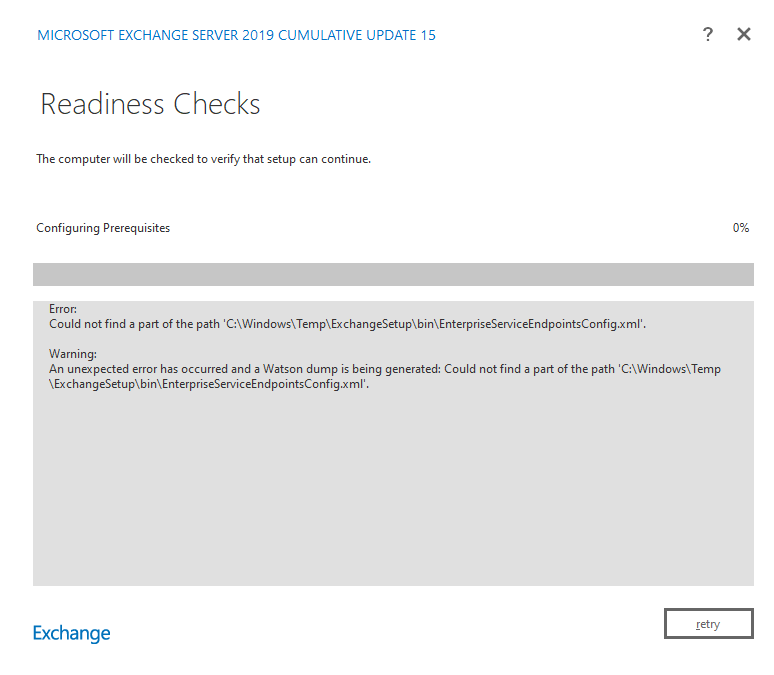
I learned that this was caused by my attempt at installing Exchange Server on a domain controller which is not supported. I then switched to a different server to install and got this error:

I installed Visual C++ which took care of that error, but the reboot gave me a little more trouble. I completed the pending Windows Updates and the error persisted. After restarting 2 more times, I was able to complete the installation successfully. When I opened Exchange Management Shell, I got the below error:
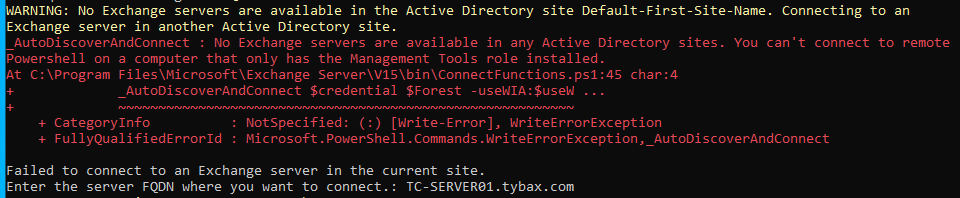
It turns out, Exchange Management Tools requires an Exchange Server, whether it's on the same machine or remote. But, this couldn't be installed on a DC and Entra Connect required it. My only option left was going to be to remove Entra Connect from the DC and install it on the server with Exchange. This is when I noticed that my attributes did sync correctly so I did not continue.