Since using remote desktop services on windows server requires licensing, decided to find another solution. I didn’t want to go for SaaS solutions like Teamviewer; instead I wanted to find a self-hosted solution. I came across Rustdesk and I chose to deploy using Docker since I already had some familiarity with this.
¶ Docker
I began using a simple docker-compose.yml:
services:
  hbbs:
    container_name: hbbs
    image: rustdesk/rusdesk-server:latest
    command: hbbs
    volumes:
      - ./data:/root
    network_mode: "host"
    depends_on:
      - hbbr
    restart: unless-stopped

  hbbr:
  container_name: hbbr
  image: rustdesk/rustdesk-server:latest
  command: hbbr
  volumes:
      - ./data:/root
  network_mode: "host"
  restart: unless-stopped
When I ran this docker compose file, I encountered a couple different errors. The first referred to services.volume not being a mapping. I do not recall the exact error and unfortunately I did not take a screenshot. But, I realized in my docker compose that I forgot to add the volumes section. Once, added, the error persisted. Then I saw that I accidentally forgot to indent everything after ‘hbbr’. After that fix, docker compose proceeded. Then I got this error:

It took me awhile to realize that this was actually just a simple mistake. I couldn’t figure out why it failed, so I ran docker pull rustdesk/rustdesk-server then renamed the image to ‘rustdesk’ with docker tag rustdesk/rustdesk-server rustdesk then added this to my docker compose and everything worked. Later, I couldn’t figure out why I wasn’t able to recreate the error, until I saw that I misspelled rustdesk-server as rusdesk-server. Lesson learned: double check spelling before going down a rabbit hole!
Here is the corrected docker-compose.yml:
services:
  hbbs:
    container_name: hbbs
    image: rustdesk/rustdesk-server:latest
    command: hbbs
    volumes:
      - ./data:/root
    network_mode: "host"
    depends_on:
      - hbbr
    restart: unless-stopped

  hbbr:
    container_name: hbbr
    image: rustdesk/rustdesk-server:latest
    command: hbbr
    volumes:
        - ./data:/root
    network_mode: "host"
    restart: unless-stopped

  volumes:
    data:
Note: In the project directory, ensure the ‘data’ folder is created. I found that sometimes volumes would be created automatically and sometimes they weren’t. I think best practice should be to create all required volumes in advance.
Once the containers were running, I went to my router configuration and set up port forwarding for TCP 21115-21117 to my Macbook at 10.0.0.13. At this point, my Macbook did not have a firewall. Otherwise, I would need to ensure ports 21115-21117 were open.
My next step was to go to my client pc and set up the RustDesk client application. Under ID/Relay server, I used the below settings. For ‘Key’, this was found in the data/id_ed25519.pub file which generated the first time the containers ran.
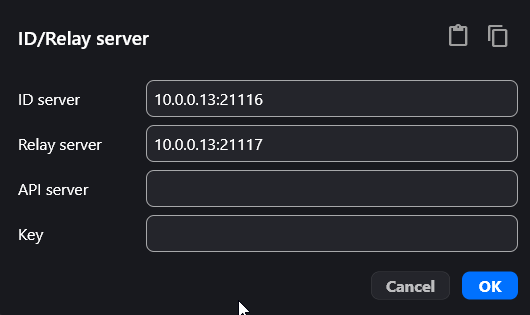
After hitting ok and restarting the application, it did not work. On the main RustDesk page I saw:

I checked the docker logs and saw that for hbbs, the local-ip was blank.
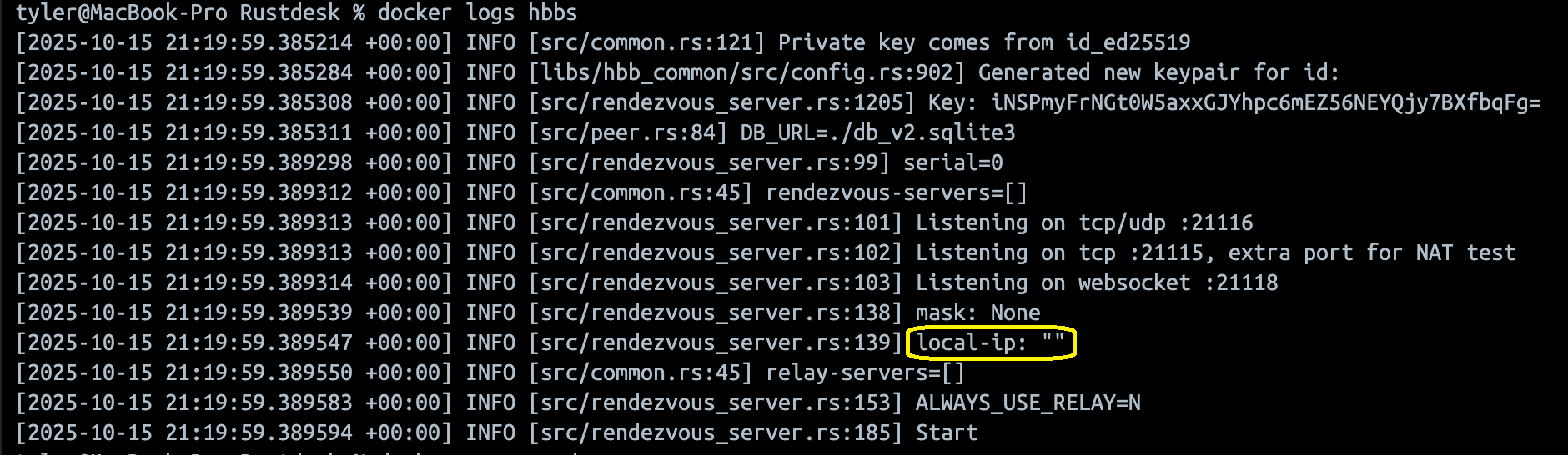
After some research, I learned that Docker on Mac devices cannot give a container direct access to the host LAN. Now, my options at this point were to try docker-in-docker to set up rustdesk inside docker inside a linux container inside docker or use a Linux VM. This was starting to stray from my primary goal, so I decided to switch to my Windows pc and try setting up my RustDesk containers there.
I set up RustDesk on my Windows pc and had the same issues. One new issue I had was that I suddenly lost the ability to connect to my Windows pc with TCP from another machine. On the client I used:
Test-NetConnection -ComputerName 10.0.0.3 -Port 21115
This failed, but on my server, I was able to verify the ports were open and listening with netstat -ano | findstr 2111.
I disabled firewall and checked Docker with no luck. I did notice that Docker said I wasn’t using a WSL 2 distro, but it turns out I needed to be running Docker with an admin account, even though my user account was in the docker-users domain. Regardless, this wasn’t the cause of my issues. After way too much messing around with different things, I discovered that I actually still had an active firewall on my windows pc. I had disabled Norton and thought that Windows Defender was off, but I didn’t realize that Defender was on for Domain networks and this was blocking the RustDesk ports. I then added firewall rules for IN/OUT 21115-21119 and finally the Test-NetConnection worked!
Ultimately, the RustDesk client app would not connect no matter what I tried. I think the issue continues to be either a version mismatch or because I need to use Linux, so I will switch to my Linux distro at some point to test that theory. In the meantime, I learned that RustDesk allows for direct IP access through port 21118 instead of going through RustDesk servers. I tried this and it worked! I did have to set a password on the remote pc so that I could connect unattended. For now, this will satisfy my initial requirements, but eventually a self-hosted server will be preferred, at least for the sake of learning.
I ended up continuing to troubleshoot and concluded that using Docker on Windows does not work with RustDesk. This is due to the fact that the RustDesk containers strictly use IPv6 and WSL/Docker on Windows uses IPv4. On other systems, IPv4 would be translated to IPv6 but not in this case. I found out that RustDesk was using IPv6 by running this command:
docker run --rm -it --network container:hbbs alpine sh
This started an alpine container with a shell using the network from the hbbs container. I then ran netstat -an which gave this output:
tcp6       0      0 :::21115                :::*                    LISTEN
tcp6       0      0 :::21116                :::*                    LISTEN
tcp6       0      0 :::21118
I did more testing, like trying to enable IPv6 on Docker, enabling it on the vEthernet for WSL, etc. Even entering the IPv6 address into the RustDesk client did nothing. I used Wireshark to see that the packets were making it to my host machine, but they were not making it to the vEthernet interface.
I then decided to give Linux a shot. I had a Linux VM for my Pihole server so I turned that on and installed Docker using the Docker documentation. Then I created my project directory and docker-compose.yml. The only thing I changed in the .yml was to remove the ports and add “network_mode: host”. I then started the containers, grabbed the public key and IP address of the VM and put them in my Rustdesk client app and it connected right away! I then made sure to re-enable all firewalls to ensure nothing was blocking ports and still successfull!
Once I knew Rustdesk worked on Linux as expected, I switched over to my Macbook since it has more resources to handle running a VM. See “Virtual Machines” above. Once Docker was installed, setting up the rustdesk containers was the same. I then switched all client apps to the new IP and key, and that concluded the project…for now.
Next, I would like to make this accessible externally. I saw a recommendation for Twingate, so I will check that out and see if it works with my setup.